QR Code Reader Scan From an Image or Camera
Drop a screenshot or photo, paste one with Ctrl+V, or point your camera at a code. You see what it holds, laid out as a link, Wi-Fi login or contact card, and nothing opens until you choose. Free, with no app, and the picture never leaves your browser.
The image or video never leaves your device.
Image
Drop an image with a QR code
Photo, screenshot or scan. You can also paste a screenshot with Ctrl+V.
Result
Decoded content appears here
Links, Wi-Fi logins, contacts and plain text are recognised and laid out for you. Nothing opens automatically.
QR code reader examples
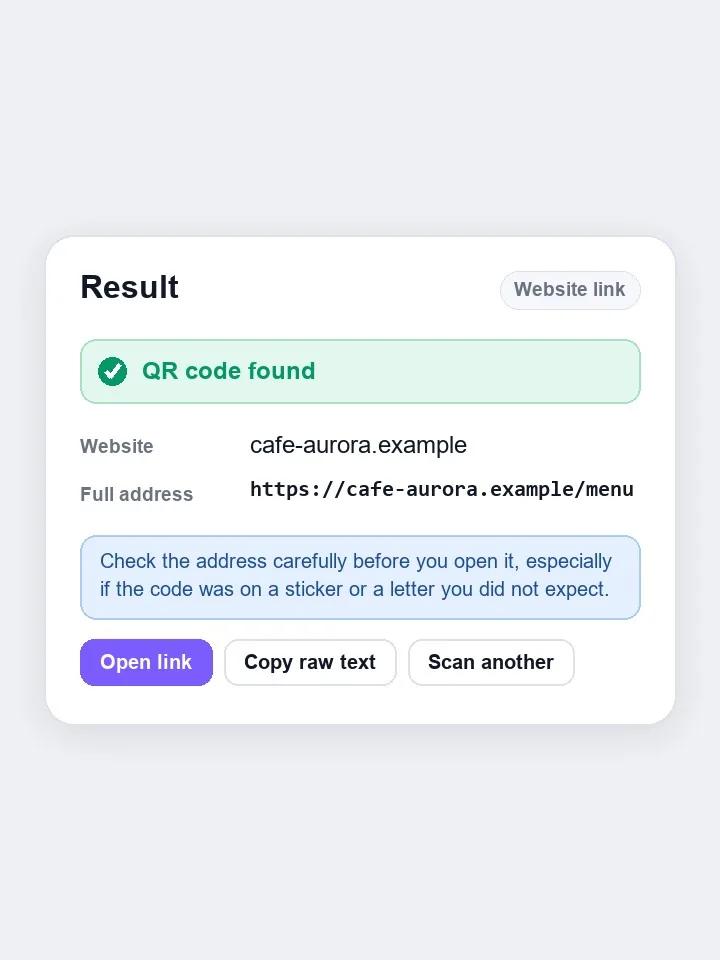
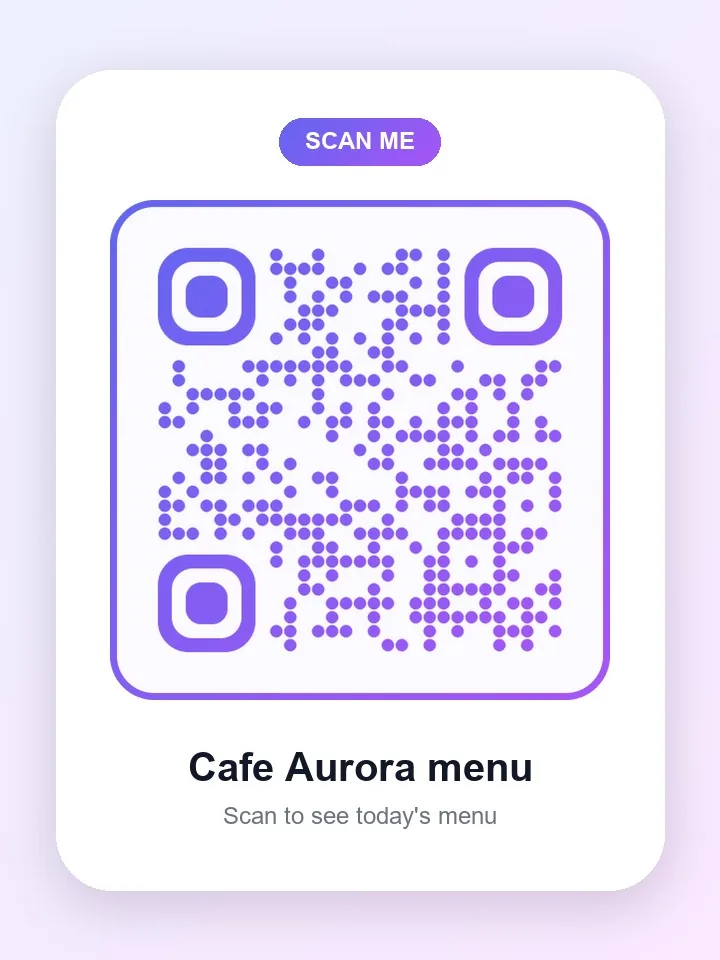
Four custom-styled QR codes, with rounded dots, a gradient and a rounded border, and what the reader shows for each one: a link with a safety note, a Wi-Fi login, a contact card, and a link over plain http that gets a warning. Pick an example and drag to compare.
Example 1 of 4
Website link
Custom QR code with rounded violet dots and a rounded gradient border for a cafe menu link. The reader shows the website and its full address, with a note to check the address before opening it.
Drag the handle on the picture to compare.
How to use
- 1
Choose Upload or paste image, or switch to Use camera.
- 2
Drop an image, paste a screenshot with Ctrl+V, or point the camera at the code.
- 3
Read the decoded result, laid out as a link, Wi-Fi login, contact card or text. Links are shown with their full address and are never opened for you.
- 4
Check the address and the safety note before you open a link.
- 5
Copy the text or the Wi-Fi password, open the link, or save the contact.
More about the qr code reader
What this tool does
This reader finds and decodes a QR code from a picture or your camera. Upload a photo or screenshot, paste one with Ctrl+V, or point your camera at a code. It then shows you what the code contains, laid out by type: a link, Wi-Fi login, contact card or plain text. Nothing opens by itself, so you can read an address before you visit it. The image is never uploaded.
This is the handy option when the code is in a picture on the same phone or computer you are using, where a camera cannot reach it. To make a code, use the QR Code Generator. This reader handles QR codes only. It will not read the striped barcodes that our Barcode Generator makes.
When you'd use it
- A code in a screenshot. Someone sent you a QR code on the phone you would normally scan with.
- Checking a code before you trust it. Stickers on parking meters and unexpected letters can carry fraudulent links, so read the address first.
- Getting a Wi-Fi password out of a code. The reader lays out the network name and password, so you can type them on another device.
- A laptop with a webcam. Hold a printed code up to the camera, then copy its contents straight into your work.
How it works
The open-source jsQR library looks for the three large squares at the corners of a QR code, works out the grid from them and reads the data, including its built-in error correction. It looks for dark-on-light codes and for inverted ones.
Very large photos and very small icons both make that search harder, so the tool tries each image at several sizes before giving up. It then sorts the decoded text by type. For links, it shows the address and warns you when one uses plain http, or uses special characters that can imitate a well-known site. The camera mode scans about as often as your device can keep up, on a downsized copy of each frame.
Real results from our tests
One code went through at decreasing quality. Rotation and blur did not stop it, and it still read correctly at just 56×56 pixels. At 28×28 there were simply too few pixels left, so the tool reported no code. Our last row is a control: a photo with no code in it, which correctly returned nothing.
| Image | Result |
|---|---|
| Clean QR code, 600×600 PNG | Read correctly |
| Same code rotated 9° and blurred, JPG | Read correctly |
| Same code shrunk to 56×56 | Read correctly |
| Same code shrunk to 28×28 | No code found |
| Our sample photo, which has no QR code | No code found |
Measured by running this tool in Chrome on 6 November 2026. Your files will give different numbers.
Tips and common mistakes
- Include the whole code in the picture, with some blank space around it. The quiet margin matters for detection.
- Crop the image to the code if it is small within a big photo. That gives the reader more to work with.
- Read the address before you open a link, particularly from a sticker or a letter you did not expect.
- Hold the camera steady and avoid glare on glossy paper, since reflections can cover part of a code.
- A shortened link hides its destination. Be more careful with those, because you cannot tell where they lead until you open them.
Limits
- It reads QR codes only, so it will not read barcodes or other 2D formats such as Data Matrix.
- Camera scanning needs a secure page and your permission. If your browser blocks it, upload a photo instead.
- Images can be up to 25 MB, and heavily damaged or very low-resolution codes may not read at all.
- The security note is a prompt to look carefully, not a safety check. It cannot tell you whether a website is honest.
Privacy and your photos
Decoding happens inside your browser. Neither the picture nor the camera video is uploaded, and the result is kept only on this page until you close it.
Frequently asked questions
How do I scan a QR code from a screenshot?
Take the screenshot, open this page and paste it with Ctrl+V, or use the upload button. The contents appear in the Result panel.
Why does it say no QR code was found?
The code may be cut off, out of focus or too small. In our tests, a code read at 56×56 pixels but failed at 28×28. Try a sharper or larger picture, and make sure it is a QR code rather than a barcode.
Is it safe to scan unknown codes here?
It is safer than scanning with an app that opens links immediately, as nothing opens until you choose. Still, read the address carefully, because this tool cannot judge whether a site is honest.
Is my picture uploaded?
No. Neither the picture nor the camera video leaves your device, and the result stays on the page until you close it.
Can it read a Wi-Fi QR code?
Yes. It shows the network name, security type and password as separate fields, so they are easy to copy.
How do I scan a QR code from an image on my computer?
Open this page and drop the image onto the box, press the upload button, or paste a screenshot with Ctrl+V. The decoded content appears in the Result panel, and nothing opens by itself.
How do I read a QR code without an app?
Use this page. It decodes a QR code from a photo, a screenshot or your camera in the browser, so you need no app. On a phone, take or save the picture, then upload it here.
How do I scan a QR code from a screenshot on a phone?
Take the screenshot, open this page in your phone's browser and press the upload button to choose it. The tool reads the code and shows what it contains.
Is it safe to scan a QR code?
The code is only a way to carry text, but the text can be a link to a fake site. This reader never opens a link for you, shows the full address and warns about plain http links, so you can check before you go. Be most careful with stickers and unexpected letters.
How can I tell if a QR code link is safe?
Read the full address. Check that the website name is what you expect, that it starts with https, and that it is not a shortened link that hides its destination. If in doubt, type the website's address yourself instead of opening the link.
What can a QR code contain?
A website link, a Wi-Fi login, a contact card, an email, a phone number, a text message, a map location or plain text. The reader recognises each type and lays it out for you.
How do I join Wi-Fi from a QR code?
Read the code here and you get the network name, the security type and the password as separate fields, with a button to copy the password. Then enter it on the device you want to connect.
Can it read colourful or rounded QR codes?
Yes, as long as the code keeps enough contrast against its background and a blank margin around it. The examples on this page are custom-styled codes with rounded dots and gradients, and the reader decodes them. Very pale colours or no margin can stop a code from reading.
How small can a QR code be and still be read?
In our test a code was read at 56×56 pixels and failed at 28×28. Larger and sharper is always safer, and cropping the picture to the code helps.
What is the difference between a QR code and a barcode?
A QR code is a square grid that can hold links, text and more, while a barcode is a row of stripes that usually holds a number. This reader handles QR codes only.
Related tools
Maintained by Hardik Sindhav · Last verified 6 November 2026 · How we test and use AI