Enlarge Photo for Print Poster & Large Print Sizes
Enlarge a photo for print without guessing. See the DPI your photo will print at, then get a file with the exact pixels your print size needs, saved at the right DPI. Free, with no sign-up.
or drag and drop your photo here
No image? Try one of these:
 Small Photo (320×320)
 Product Photo (1024×1024)
- Start from the original, not a screenshot
- Sizes from 4×6 in to 24×36 in
- DPI saved inside the JPG
Photo enlarger examples
How a photo with too few pixels prints soft, and how it looks once enlarged to the size the print needs. Pick an example and drag to compare.
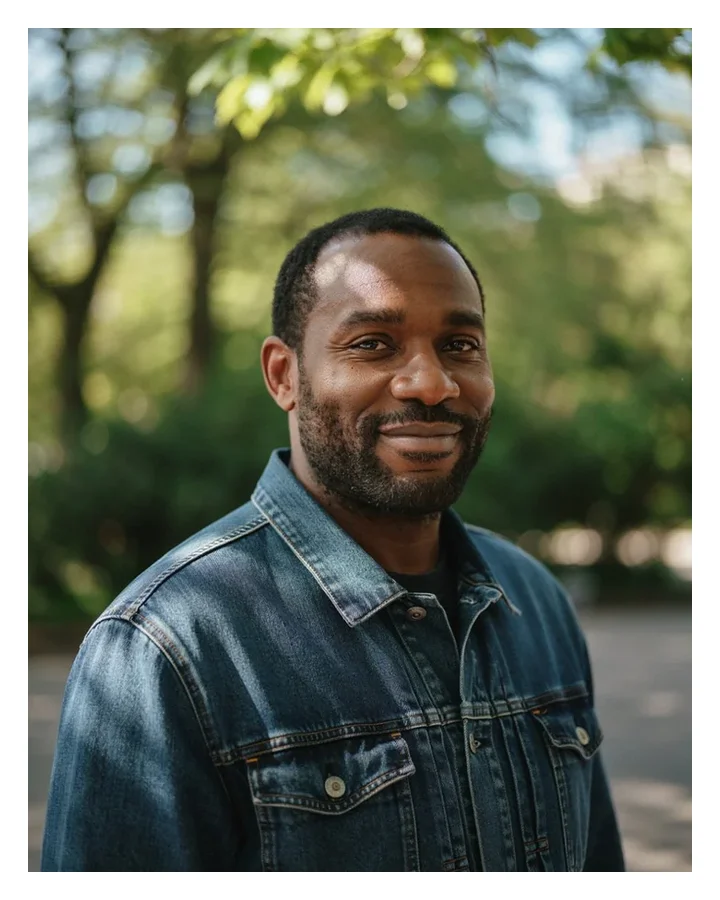
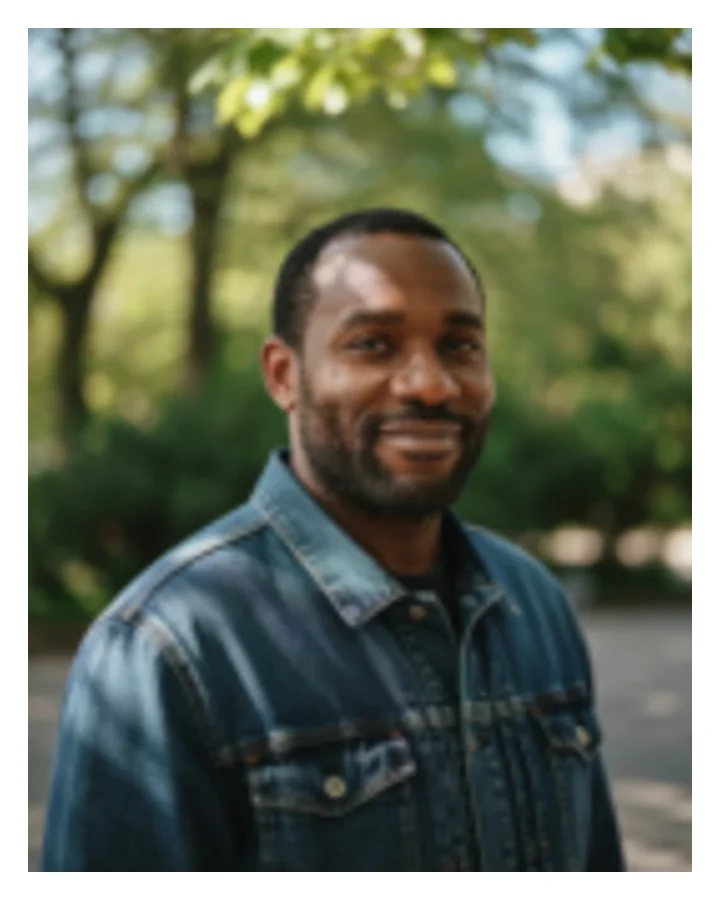
Example 1 of 6
Portrait · 8×10 in
Portrait printed at 8×10 inches: soft when the photo has too few pixels, sharp once enlarged.
Drag the handle on the picture to compare.
How to enlarge a photo for print
- 1
Upload the photo you want to print.
- 2
Choose the print size, then 300, 240 or 150 DPI.
- 3
Read the DPI your photo prints at now and how much enlargement it needs.
- 4
Click to make the print file, then download the JPG and send it to your print shop.
More about the photo enlarger for print
What this tool does
Before you pay for a large print, this tool tells you whether your photo is big enough and, if it isn't, enlarges the photo for print. Choose a size from 4×6 inches to 24×36 inches, or A4 to A2, and it shows the DPI your photo would print at, with a plain verdict such as "Will look soft". It then makes a file with exactly the pixels that print needs, at 300, 240 or 150 DPI, and writes that DPI into the JPG.
Where this differs from the plain Image Upscaler is that it starts from the paper size and works back to the pixels, cropping to the print's shape as it goes. If your print is too big for one sheet, the Photo to Poster Maker splits it across home printer pages. To change only the DPI label on a file that already has enough pixels, use Change Image DPI.
When you'd use it
- Ordering a canvas or framed print. Check a phone photo against the size you want before you order, rather than after it arrives.
- A print shop that asks for 300 DPI. Get a file at the exact pixels for your size, with 300 DPI recorded in it.
- Old or small photos. When a scan or an old phone picture is too small, the AI step can add apparent detail before enlarging.
- Posters seen from a distance. Choose 150 DPI for large prints viewed from a few feet away, which keeps the file much smaller.
How it works
DPI is only pixels divided by inches. A 1024 pixel photo printed 8 inches wide has 128 pixels per inch, which looks soft close up. To be sharp at 300 DPI, those 8 inches need 2400 pixels. The tool first crops your photo from the centre to match the print's shape, works out the resulting DPI and tells you from how far away it would look sharp.
If the photo needs enlarging, the cropped picture goes to our server for an AI upscaling step of 2× or 4×, which adds apparent detail. That copy is erased from the server within an hour, and the enlarged version within six. The tool then resizes that result in your browser to the exact target. If the AI step cannot help or fails, your browser enlarges the photo on its own and tells you so.
Real results from our tests
One 1024×1024 sample went through at three print sizes, and the AI step ran each time, with a total time of 15 to 18 seconds including the server trip. Each output hit the exact pixels for its size at 300 DPI. A square photo cropped to these shapes loses some of its edges.
| Print size | Output pixels | Output size | AI step | Time |
|---|---|---|---|---|
| 4×6 in | 1200×1800 | 441 KB | Ran | 14.7 s |
| 8×10 in | 2400×3000 | 1.19 MB | Ran | 17.6 s |
| 16×20 in | 4800×6000 | 3.62 MB | Ran | 17.4 s |
Input: our 1024×1024 sample portrait, 687 KB, at the default 300 DPI. Run on the live site. Times include the trip to our server and vary with how busy it is. Measured by running this tool in Chrome on 6 November 2026. Your files will give different numbers.
Tips and common mistakes
- Start from the original file, not a screenshot or a copy from a chat app. Those have already lost pixels.
- Do not insist on 300 DPI for a large poster. People stand back from big prints, so 150 DPI is often plenty.
- Look at faces at full size after enlarging. AI adds plausible detail, not the real thing, and small faces can look strange.
- Check your print shop's accepted file size. A very large JPG may need to go through their upload page rather than by email.
- Check the crop. A print's shape may not match your photo's, so make sure nothing important falls off the edges.
Limits
- AI detail is invented, not recovered. It can look convincing, but it will not reveal what the camera never captured.
- The AI step accepts up to 2048 pixels on the long side, 2 megapixels in total, and 16 megapixels of output. Larger photos skip it and get a standard enlargement.
- Very large outputs, such as 24×36 inches at 300 DPI, can exceed what your browser's memory allows. Try a lower DPI if it fails.
- The output is a JPG, so transparency is not kept.
- It crops from the centre. To choose the area yourself, use Crop Image first.
Privacy and your photos
Checking sizes, cropping and resizing happen in your browser. Only when the AI detail step runs is the cropped photo sent to our server, which deletes the upload within an hour and the result within six hours.
Frequently asked questions
How do I enlarge a photo for printing without losing quality?
Make real pixels, not just a bigger DPI number. Pick your print size and DPI here, and the tool crops to the print's shape, adds detail with an AI upscaling step, then resizes to the exact pixels the print needs and saves the JPG at that DPI.
What resolution do I need to print 8×10?
2400×3000 pixels for a sharp 300 DPI print, or 1200×1500 pixels at 150 DPI for one seen from a few feet away. Load your photo and pick 8×10 in to see its DPI and how much it needs enlarging.
How many pixels do I need for a 16×20 or 24×36 print?
At 300 DPI, 4800×6000 pixels for 16×20 and 7200×10800 for 24×36. At 150 DPI, which is fine for a poster seen from a few feet, it is 2400×3000 and 3600×5400.
Can I enlarge a phone photo to poster size?
Often, yes. A 12-megapixel phone photo (4032×3024 pixels) printed at 18×24 inches comes out at about 168 DPI, which is fine for a poster seen from a few feet. For a print you hold close, choose a smaller size or let the tool enlarge it.
How big can I print my photo?
Divide the pixels by the DPI you want. A 3000×2000 photo gives 10×6.7 inches at 300 DPI. The tool does this for each size and shows you the verdict.
Is my photo uploaded?
The size check, crop and final resize happen in your browser. Only the AI detail step sends the cropped photo to our server, and it does not stay there long: the copy goes within an hour and the output within six.
Does changing a photo to 300 DPI make it print sharper?
No. On its own, that number changes nothing about the picture. This tool also creates the extra pixels, and that is what fills the print.
What DPI do I need for a poster?
A 150 DPI print looks fine from a few feet, and the tool shows the exact distance for each option. Use 300 DPI for prints people hold in their hands.
Why didn't the AI step run?
It may have been skipped because your photo is above its size limits or does not need enlarging, or the server may have been unavailable. The tool tells you, and still makes the file with a standard enlargement.
Related tools
Maintained by Hardik Sindhav · Last verified 6 November 2026 · How we test and use AI