Exam Photo & Signature Resizer (Exact px & KB)
Get your photo and signature to the exact size and file size your application form asks for. Nothing is uploaded.
or drag and drop your photo here
No image? Try one of these:
 Portrait Photo
How to use
- 1Choose your exam preset, or Custom size and type the pixels and KB range from your notification.
- 2Upload the photo or signature.
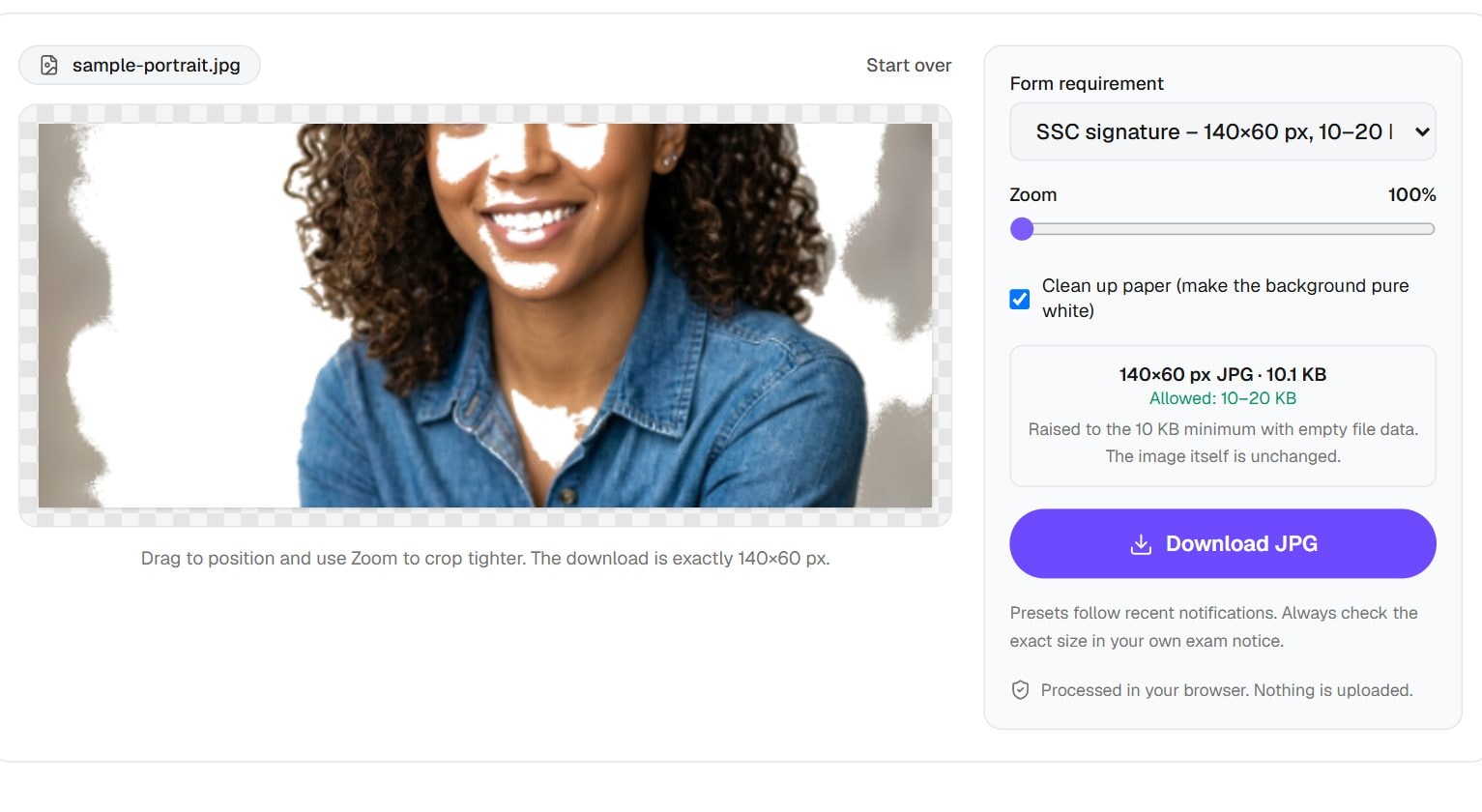
- 3Drag and zoom so the face or signature fills the frame.
- 4Check that the file size shows inside the allowed range, then download the JPG.
Privacy: Your photo and signature are processed in your browser and never uploaded. That matters for documents used to verify your identity.
What this tool does
Exam portals in India check three things at once: the width and height in pixels, a maximum file size, and often a minimum file size too. This tool meets all three in one step. Choose a preset such as SSC signature, UPSC photo or NEET passport photo, or enter custom numbers from your notice. Your image comes back at those exact pixels, inside that KB range, as a JPG.
It is more specific than Compress Image to KB, which only watches the upper limit and may change the dimensions to reach it. Here the pixel size never moves. Use the general Image Resizer when you need dimensions with no KB rule at all.
When you'd use it
- SSC, UPSC and NEET applications. The presets hold the published sizes, for example 350×350 px and 20 to 300 KB for a UPSC photo, so you do not have to convert them by hand.
- A signature on white paper. Sign in dark ink, photograph the page, and the signature mode cleans grey paper and shadows to white, leaving only the ink.
- UPSC's three signatures. That preset expects three signatures, one below the other on one sheet, uploaded as a single image of 350×500 px.
- Any other exam notice. Bank, railway and state exams each have their own numbers. Custom mode takes any size from 20 to 4000 px, with your own KB range.
How it works
You position the photo inside a frame that has the preset's exact shape, so nothing gets stretched. The tool then draws that area at the required pixel size and encodes a JPG at the highest quality that stays under the maximum.
The minimum is the unusual part. A very small photo can compress to less than a form allows, and the portal then rejects it for being too small. When that happens, the tool adds harmless padding data inside the JPG file until it reaches the minimum, without changing a single visible pixel. Everything runs in your browser, which matters for a document that carries your name and face.
Real results from our tests
These came from one 1024×1024 sample portrait. The SSC result sits right at its 20 KB minimum, because a 100×120 px picture has too few pixels to fill even that much, so padding was needed. The larger UPSC and NEET presets landed comfortably inside their ranges. Every output matched its preset's pixel size exactly.
| Preset | Output pixels | Output size |
|---|---|---|
| SSC photo (older forms) – 100×120 px, 20–50 KB | 100×120 | 20 KB |
| UPSC photo – 350×350 px, 20–300 KB | 350×350 | 59 KB |
| NEET passport photo – 275×354 px, 10–200 KB | 275×354 | 55 KB |
Input: our 1024×1024 sample portrait. Measured by running this tool in Chrome on 6 November 2026. Your files will give different numbers.
Tips and common mistakes
- Check the current notice before relying on any preset. Exam bodies change these rules between cycles, and the notice always wins.
- Use daylight and a plain wall for the photo. No tool can fix a shadow across your face at 100×120 px.
- Sign with a dark pen on clean white paper, and keep the phone straight above the page to avoid a slanted signature.
- Do not screenshot your photo to save time. A screenshot lowers detail before the tool even starts.
- Note that recent SSC forms capture the photo live in their app, so the SSC photo preset only applies if your form asks for an upload.
Limits
- It outputs JPG only, which is what these portals ask for.
- It works on one image at a time, so run the photo and the signature separately.
- It cannot tell whether a photo meets rules on background, dress or age of photo. You still have to read those yourself.
- Our presets cover SSC, UPSC and NEET. For anything else, enter the numbers yourself from your notice.
Frequently asked questions
- My form says 20 KB to 50 KB. How do I hit both limits?
- Pick the matching preset, or enter 20 and 50 in custom mode. The tool aims for the best quality under 50 KB, and adds padding if a small photo would otherwise fall below 20 KB.
- Does the padding harm the photo or break the upload?
- It does not change the picture. The extra bytes sit in a part of the JPG file that image viewers ignore, so the photo looks exactly the same and opens normally.
- Why does my signature come out so clean?
- Signature mode pushes light greys to pure white, which removes paper texture and shadow. If faint strokes vanish too, sign again with a darker pen.
- Are my details uploaded anywhere?
- No. The photo and signature stay on your device, because cropping and encoding both happen in your browser.
- How is this different from a passport photo tool?
- A passport tool frames your head to an official size rule. This one only guarantees pixel and file size. For a passport application, use the Indian Passport Photo tool instead.
Maintained by Hardik Sindhav · Last verified 6 November 2026 · How we test and use AI
Want the details? Why your photo says 72 DPI, and how to change it to 300 without losing quality