
Most YouTubers I talk to don't struggle with filming. They struggle with the hour before filming: picking a topic that people are actually searching for, then writing a title, a description, tags and a thumbnail idea for it. I wanted a tool that does that hour for you, using what people are searching on Google today, and I wanted it free with no sign-up, like everything else on ProCutOut.
This post is how I built the AI YouTube Content Planner: why I made the choices I made, the numbers from my own tests, and the things that broke along the way. Some of those bugs were embarrassing. I'm including them anyway, because they're the part that would have saved me time if someone else had written them down.
Why I built a YouTube planner at all
ProCutOut started as image tools, and a lot of the people using the background remover and the YouTube thumbnail resizer are YouTubers making thumbnails. They already had the "make it look good" part covered. What they kept asking about was the part before that: what should the next video even be?
The tools I tried for this fell into two groups. Some were keyword tools that give you a list of search terms and leave the rest to you. Others were chat-style AI tools where you type "give me 10 video ideas about tech" and get the same ten ideas everyone else gets, with no link to what's happening this week. I wanted something in between: real search data from today, turned into a plan that's specific to one channel, with everything you need to upload.
Step 1: a throwaway prototype
I didn't build it inside the main site first. I made a small separate app to answer one question: is the output good enough that someone would actually film it? If the ideas were generic, nothing else mattered.
The prototype did the core loop only. Pick a category, load trends, press a button, get video ideas. It looked rough, but it showed the idea worked. When I fed it a budget-phone tech channel in India with a trending iPhone search, it came back with "iPhone 18 vs. $150 Phone: Speed Test Showdown!" and a 6-chapter description. That's a video a real channel would make. Once I saw that, I moved it into the main site and rebuilt the parts that weren't good enough for real visitors.
Where the trends come from
Google publishes a daily trending-searches feed for each country. It's public, it needs no API key, and it includes an approximate search volume ("5000+") plus the news stories behind each trend. The planner reads it on our server, keeps a copy for 20 minutes so we don't hit Google on every page view, and covers 32 countries.
The first problem showed up straight away: most trends have nothing to do with most channels. On the day I took the screenshots, the US list was full of sports results, a celebrity dinner and a high school. If you tell an AI "use these trends", it will happily force a gaming channel to make a video about a football coach. So the instructions say the opposite. Use a trend only if it genuinely fits, or if there's a believable bridge to it. Otherwise, write an evergreen idea and say so. Each video in the plan shows which trend inspired it, or "Evergreen", so you can see the AI isn't pretending.
Two smaller things I had to fix in the feed. It sometimes lists the same trend twice, which broke the selection buttons, so duplicates are dropped. And because news links come from an outside feed, only plain https links are passed through to the page.
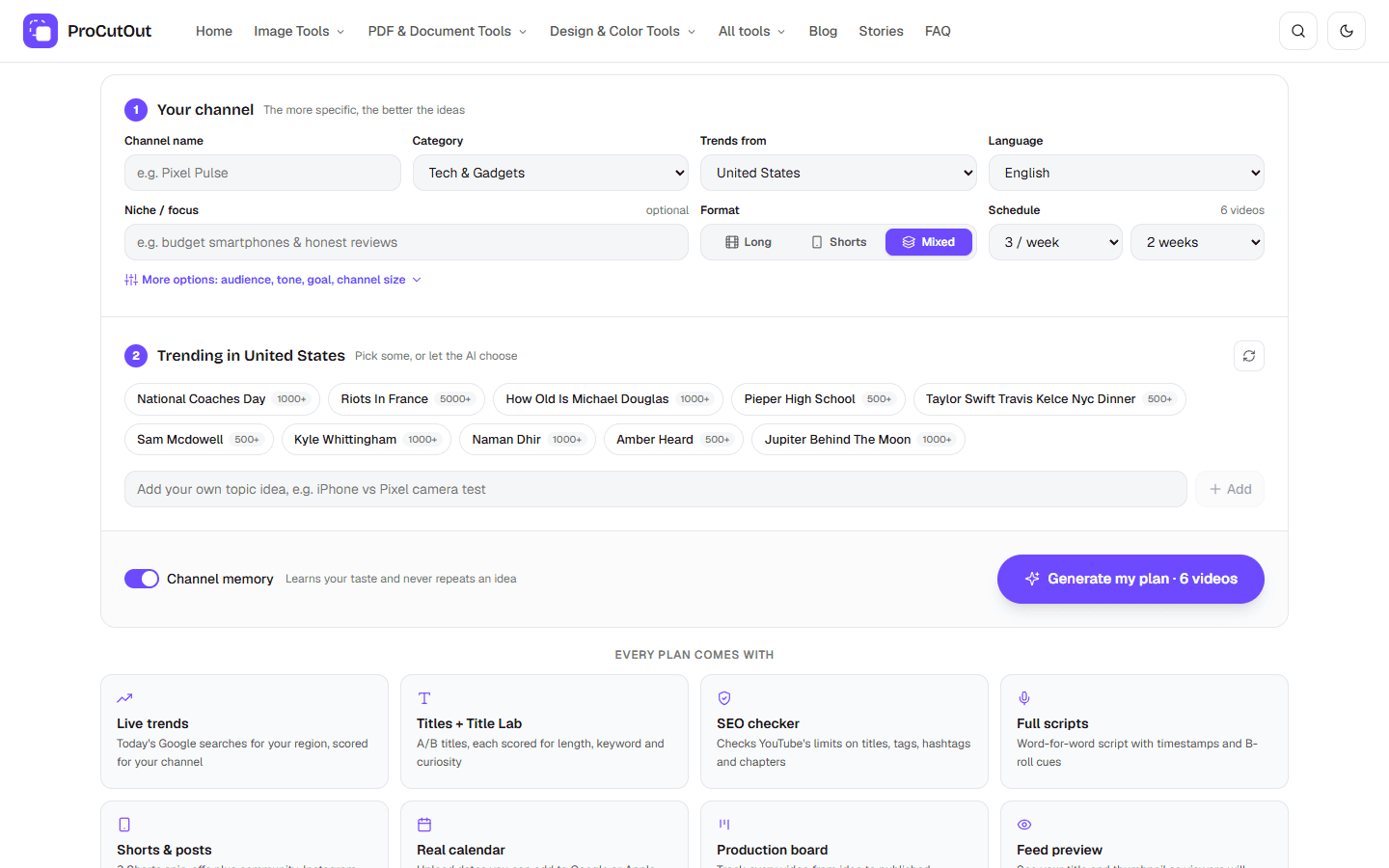
Picking the AI model, and why speed mattered more than I expected
I use gpt-oss-120b, OpenAI's open-weight model, hosted by Groq. I picked Groq for one reason: speed. A plan is one big answer, and people won't sit and watch a spinner for 40 seconds. These are the real numbers from my testing:
| Request | Time | Notes |
|---|---|---|
| Plan with 2 videos | 3.6 s | 1,982 tokens in total (747 in, 1,235 out) |
| Plan with 6 videos | 6.8 s | Strategy, 5 trend scores and 6 full video kits |
| The same plan again | 0 s | Answered from our cache, no AI call |
| Full script for one video | One small request | 8 sections with timestamps for a 12:30 video |
A plan is capped at 12 videos. That isn't a business limit. Above that, the answer gets long enough that it can run past the time a single web request is allowed to take, and a half-finished plan is worse than a shorter complete one. If you choose 7 uploads a week for 4 weeks, the tool says plainly that you'll get 12 and spreads them across the weeks.
Keeping each request small
Every AI call costs tokens, and on a free tool that adds up fast. A few things kept it under control:
- The fixed instructions always go first. Groq can reuse the start of a prompt it has seen before, so the rules and the answer format never change and always lead. Only the short channel details change.
- The answer format is written as a compact sketch rather than a long example. The model follows it just as well, and it's a fraction of the length.
- Identical requests are cached for 6 hours. Trends move fast, so longer than that and the plan goes stale.
- Changing one video doesn't redo the plan. "New idea" replaces a single upload slot, and the script and Shorts are separate small requests you only make when you want them.
Getting a clean answer back every time
The page needs structured data: a list of videos, each with a title, tags, a schedule and so on. I ask the model for JSON and turn on Groq's JSON mode, which makes the model answer in JSON. It doesn't make it answer in the shape you asked for. In testing I got answers wrapped in an extra layer, answers with renamed keys, and once an answer that had the strategy but no videos at all.
So the server doesn't trust the shape. It searches the answer for anything that looks like a list of videos, a strategy and the trend scores, wherever they ended up. Then it cleans every field: scores are forced between 0 and 100, the week is kept inside the plan length, days are matched to Mon to Sun, and hashtags always start with #. If the videos are missing entirely, it asks once more. Incomplete plans are never cached, so a bad answer can't get stuck and be served to the next person.
The bug I found in my own prototype
Groq's free tier has a tokens-per-minute limit. When you hit it, the error message says something like "try again in 7.5s". My prototype was meant to read that number, wait, and retry once if the wait was short.
It never worked. The pattern that pulled the number out of the message was written to match the letter "d" instead of a digit. It never found a number, so it always fell back to waiting 30 seconds, which was longer than my retry limit, so it never retried at all. One missing backslash. It's fixed now, and the planner waits out short limits by itself instead of showing an error.
Moving from a prototype to a public page also meant thinking about everyone who isn't me:
- The AI key lives only on the server. The browser never sees it.
- Every field you type is checked and trimmed before it reaches the AI, and dropdown values have to be one of the real options. Nobody can paste a novel into "channel name" and run up a huge bill.
- Each visitor can make several plans every 10 minutes. That's plenty for normal use and stops one script from using the whole day's quota.
- Every AI call has a timeout, so a slow answer turns into a clear message instead of a page that hangs.
Memory without accounts
If you make a plan today and another one next week, the second one shouldn't suggest the same videos. The usual fix is an account and a database. I didn't want either, because nothing else on the site needs you to sign in.
Instead, your browser keeps a list of every title the planner has given your channel, plus your likes and dislikes. Before each request, that list is boiled down to a small summary: up to 30 recent titles to avoid, 8 liked ones to build on and 6 disliked ones to steer away from. That summary is all that's sent. Your plans and edits stay in your browser, and there's a button to forget a channel completely.
An SEO checker that doesn't use AI
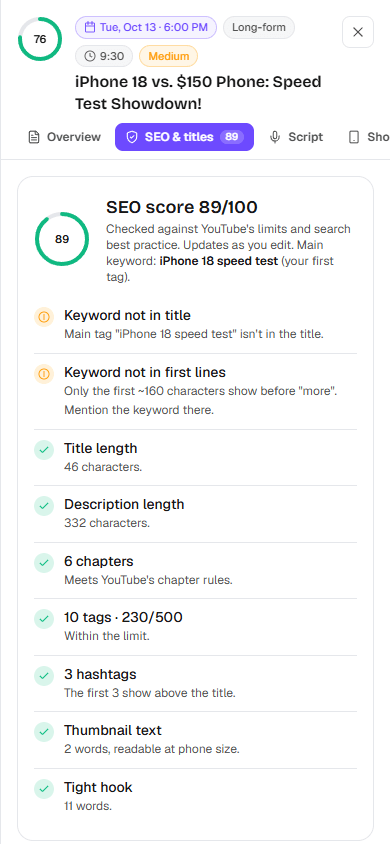
I could have asked the AI to score its own titles. I didn't, because an AI grading its own homework will tell you everything is great. The SEO score is a plain checklist built from YouTube's own limits, and it re-checks as you type:
- Titles can't be longer than 100 characters, and search results cut them off at about 70.
- Descriptions can be up to 5,000 characters. Only the first lines show before "more", so the main keyword should be there.
- Tags share a 500-character budget, and a tag with a space in it counts two extra characters for the quotes YouTube adds. Most tag counters miss that.
- Use more than 15 hashtags and YouTube ignores all of them.
- Chapters only appear if the first timestamp is 0:00, there are at least three, and each is at least 10 seconds long.
The Title Lab uses the same checks to score the main title and the alternatives side by side, so picking one is a comparison, not a guess.
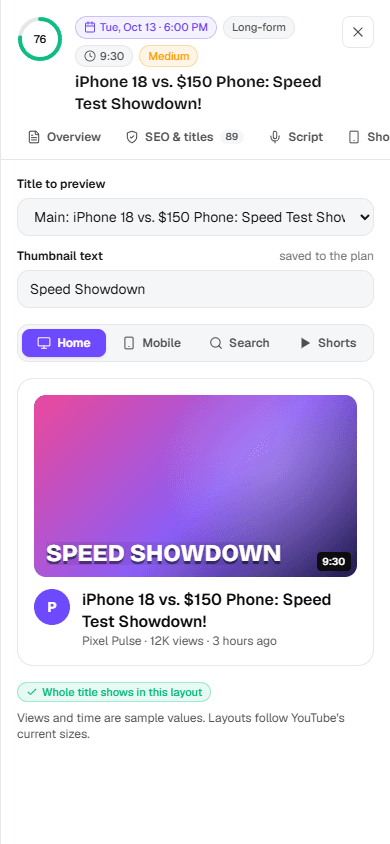
The feed preview had a small lesson of its own. My first idea was to warn when a title went over a set number of characters. That's wrong, because "WWWW" and "iiii" take up very different amounts of space. Now the preview lays the title out the way YouTube does, two lines in YouTube's font size, and measures whether the text actually overflows. If it says the title is cut off, it really is in that layout.
My first design was bad on phones
I'll be honest about this one. The first version copied the prototype's layout: a tall form in a sidebar on the left, results on the right. On a laptop it was fine. On a phone it was broken. The whole tool was wider than the screen, every panel was cut off on the right, and the Generate button was so far down the form that you had to scroll past everything to find it.
The overflow came from one detail of CSS grid. A grid column is allowed to grow to fit its widest child, and the row of tabs and buttons inside it was wider than a phone. The fix was a single setting that lets the column shrink. The bigger fix was the layout itself. Now everything is one column. The setup is a single card in three numbered steps, with the less important options (audience, tone, goal) folded away. Once you have a plan, the setup collapses into one summary line so the results get the screen. Five separate export buttons became one Export menu.
Building drag and drop that works on phones
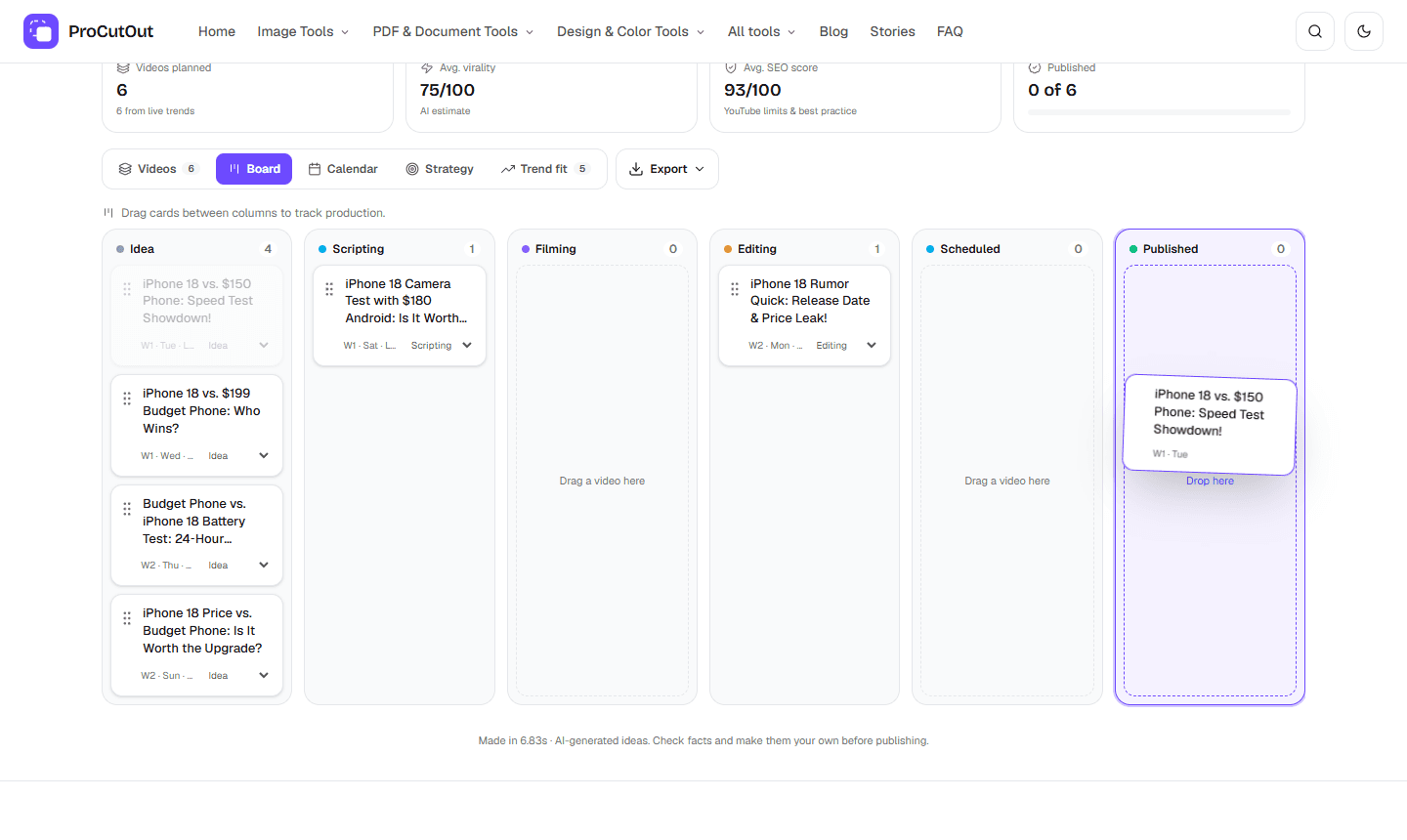
The production board tracks each video from idea to published. Dragging cards between columns is the obvious way to use it. The browser's built-in drag and drop is the obvious way to build it, and it doesn't work with touch, which is how most creators would use it.
So I wrote it with pointer events, which cover mouse, pen and touch in one piece of code. Three problems came up while testing it:
- Dragging fought with scrolling. On a phone, sliding your finger across the board should scroll it, not grab a card. Now touch drags only start from the small grip on each card, while a mouse can grab the whole card.
- The board wouldn't scroll during a drag. The six columns don't fit on a phone, so the board scrolls by itself when you hold a card near the edge. In my test it didn't move at all. It stayed at 14 pixels every time. The cause was scroll snapping, which keeps columns lined up neatly and was pulling the board back after every tiny scroll. Snapping now switches off while you drag. In the next test the board scrolled 950 pixels and the card landed in the right column.
- Dropping a card also opened it. When you let go of the mouse, the browser also counts it as a click, and a click on a card opens it. The board now ignores the one click that comes straight after a drop.
One more layout bug only showed up on phones. When you opened a video, the site's header covered the top of the panel, hiding its score and upload date. Raising the panel's layer didn't help, because the tool sits inside a section that keeps its own layers separate from the rest of the page. The fix was to render the panel at the top level of the page instead of inside the tool.
The calendar export
"Week 2, Thursday, 6 PM" is fine on screen, but people plan in their actual calendar. So the plan turns into real dates (week 1 starts on the Monday on or after the date you choose) and exports as a .ics file that Google Calendar, Apple Calendar and Outlook all import. Each upload becomes an event with a reminder two hours before.
Two details made this harder than it sounds. Upload times are saved as local time with no time zone, so 6 PM stays 6 PM wherever your calendar is set. And calendar files have to split long lines at 75 bytes, not 75 characters. A Hindi or Japanese title uses several bytes per letter, so splitting by characters would have produced files some calendar apps reject.
A testing mistake worth sharing
At one point a screenshot showed a hook reading "phoneâ€"who's faster". I assumed the tool was mangling text. It wasn't. My own test script, running on Windows, had read the saved plan with the wrong text encoding, so a perfectly normal dash turned into garbage before the page ever saw it. The app was fine. If you build anything that handles more than English, check your own test data before you blame the thing you're testing.
What it can't do
- The trends come from Google search, not from YouTube's own data. Something can be big on Google and quiet on YouTube.
- The virality score is the AI's estimate, not a prediction. Treat it as a way to compare ideas within one plan.
- AI can get facts wrong, especially about news that broke today. Check any claim before you put your face on it.
- Your channel details are sent to our server and to Groq to write the plan. Please don't type personal information into those fields.
How to get a good plan out of it
- Be specific in the niche field. "Tech" gives generic ideas. "Budget phones and honest reviews for students" gives videos only your channel would make.
- Pick two or three trends you'd actually cover. Leaving them all unpicked works, but choosing gives the AI a clearer brief.
- Like and dislike ideas. It takes a second, and the next plan leans the way you pointed it.
- Open the best idea and write the script there. Then cut the Shorts from it, so one idea becomes four uploads.
- Finish the thumbnail. Pull a frame with the video thumbnail generator, cut yourself out with the background remover, and get it to 1280×720 under 2 MB with the thumbnail resizer.
If you want the image side in more depth, I've covered resizing images for YouTube and making thumbnails from video frames separately.
The planner is free, needs no account, and your plans stay in your browser. Try the AI YouTube Content Planner, and if something in it is wrong or annoying, tell me. Half of this post exists because something was.


