Video to JPG or PNG Frame Extractor
Save any frame of a video as a JPG or PNG, or extract a frame every few seconds as a ZIP. Nothing is uploaded.
or drag and drop your video here
No video? Try a sample:
How to use
- 1Upload a video or try a sample.
- 2Choose JPG for smaller files or PNG for lossless images.
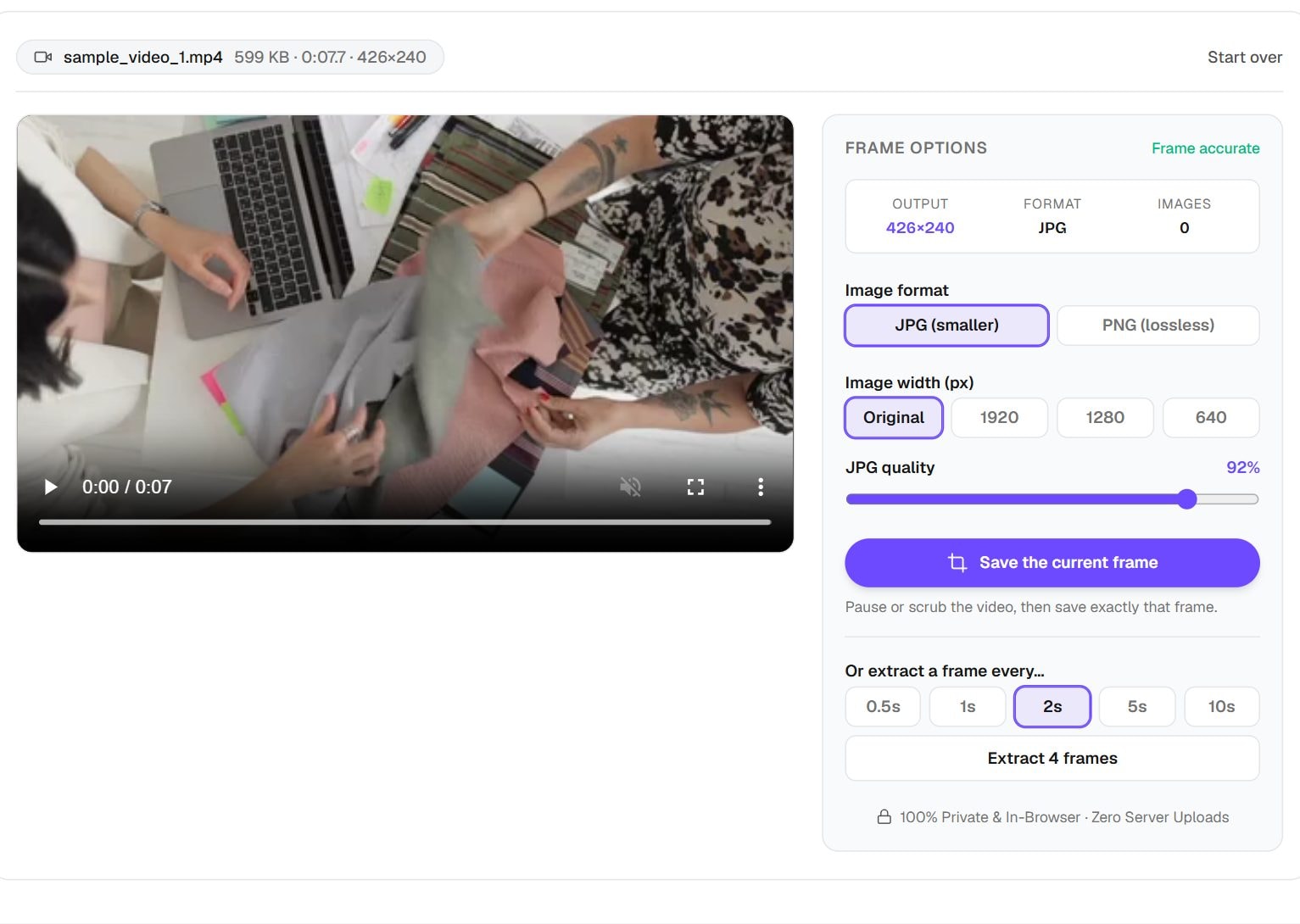
- 3Pause or scrub to a moment and press Save the current frame, or choose an interval and press Extract.
- 4Set the width, and the JPG quality, if you want smaller files.
- 5Save single images, or download everything as a ZIP.
Privacy: Frames are produced by your own browser. The video never leaves your device, and images vanish when you close the tab.
What this tool does
Video to JPG saves still images from a video. Pause on the moment you want and save that one frame, or extract a frame every 0.5, 1, 2, 5 or 10 seconds and download them all in a ZIP. Pick JPG for smaller files or PNG for an exact copy, and choose the width: the original size, or 1920, 1280 or 640 pixels. There is no watermark, and the file stays on your device.
This tool gives you frames as they are. If you want a headline on top, or an image fitted to YouTube or Shorts sizes, use the Video Thumbnail Generator. For a moving picture instead of stills, Video to GIF makes a short looping clip.
When you'd use it
- Grabbing one perfect moment. Pull a sharp still of a goal, a smile or a product shot straight from your footage.
- Storyboards and reviews. A frame every few seconds gives you a contact sheet of a long clip, without watching it all.
- Training data and analysis. Researchers and hobbyists can sample a video at regular intervals to get a set of images.
- Evidence of what is on screen. Capture a frame at a known time from a dashcam or a recording, then use the time in its file name.
How it works
A hidden copy of your video jumps to the chosen time, and your browser decodes that frame. The tool paints it onto a canvas at the width you picked and saves it with the time in the file name, such as 00m12s. For interval extraction, it repeats this at each step and packs the images into a ZIP in your browser.
Modern video stores most frames as small changes from nearby ones, so a saved frame is a reconstruction. Any frame you grab already carries the video's compression. A still from a fast-moving scene can also show motion blur, because the camera's shutter stayed open while the subject moved. Stepping a little earlier or later often finds a sharper frame.
Real results from our tests
Our sample clip is only 426×240, so these files are small. The difference between formats is what to note: the same frame was 35 KB as a JPG and 205 KB as a PNG. Interval mode took a frame every 2 seconds from the 7.7-second clip, which made 4 images and a 131 KB ZIP.
| Setting | Pixels | File size |
|---|---|---|
| Current frame, JPG | 426×240 | 35 KB |
| Current frame, PNG | 426×240 | 205 KB |
| One frame every 2 s (4 JPGs in a ZIP) | – | 131 KB |
Input: our 7.7-second sample MP4, default quality. Measured by running this tool in Chrome on 6 November 2026. Your files will give different numbers.
Tips and common mistakes
- Pause and step around the moment you want. One frame earlier or later can be much sharper.
- Use PNG if you plan to edit the frame, or if it contains small text you need to keep crisp.
- Pick a longer interval for long videos. One frame per second from an hour of footage is 3,600 images.
- Leave the width at Original unless you need smaller files. Choosing a larger width than the video has only enlarges it.
- Start from the best copy you have, since a compressed download already lost detail before you got here.
Limits
- A frame can never be sharper than the video it came from. Low-resolution clips give low-resolution stills.
- It accepts MP4, MOV, WebM and MKV when your browser can decode them, so unusual formats may not open. Use a Video Converter first if yours will not load.
- Very short intervals on long videos make a large number of files and use a lot of memory.
- Frames are lost when you close the tab, so download them before you leave.
Frequently asked questions
- How do I save a frame from a video?
- Upload the video, pause or scrub to the moment, then press Save the current frame and download it.
- JPG or PNG?
- JPG is smaller and fine for most uses. PNG is an exact copy, so choose it for editing. Our test frame was almost six times bigger as a PNG.
- Can I extract every frame?
- Not exactly. The shortest interval is 0.5 seconds, which covers most needs. Every frame of a 30 fps video would be 30 images per second, more than a browser tab can comfortably hold.
- Why does my frame look blurry?
- It may have motion blur from the original filming, or come from a low-resolution video. Try a nearby frame, or use a higher quality copy.
- Is my video uploaded?
- No. Your browser reads the frames from the file on your device, and the images disappear when you close the tab.
Maintained by Hardik Sindhav · Last verified 6 November 2026 · How we test and use AI
Want the details? How to extract frames from a video as JPG or PNG and turn the best one into a thumbnail