Free Online Video Cropper
Drag a box over the frame to crop out black bars or unwanted edges. Nothing is uploaded, and there is no watermark.
or drag and drop your video here
No video? Try a sample:
How to use
- 1Upload your video or try a sample.
- 2Pick an aspect ratio (Free, Original, 1:1, 9:16, 16:9, 4:5, 4:3 and more), and rotate or flip the video if it's the wrong way round.
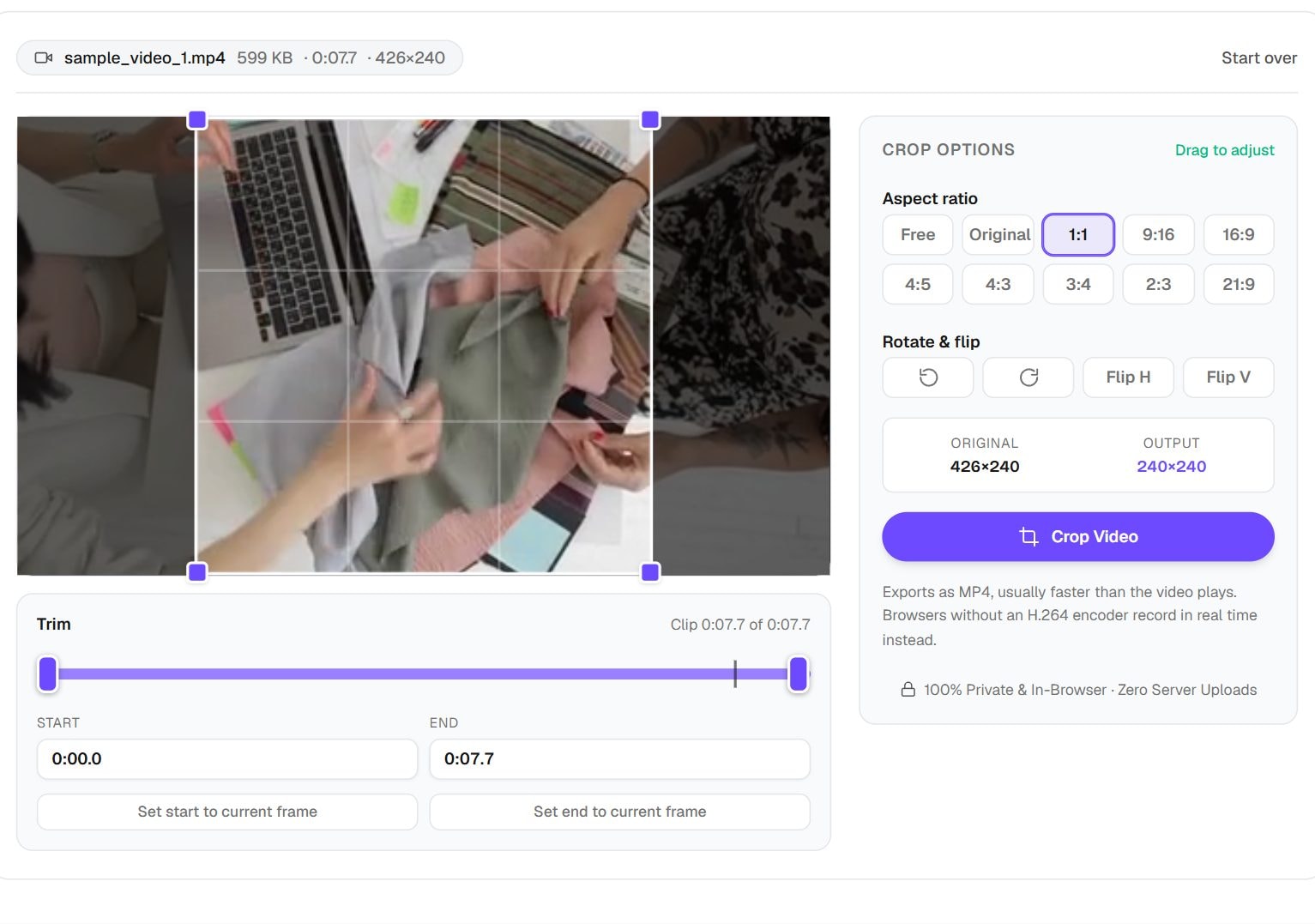
- 3Drag the box to move it and pull a corner to resize. The dimmed area will be removed.
- 4Press Crop Video, wait for the progress bar, then download the file.
Privacy: The crop is done by your own browser. Your video is not uploaded, and closing the tab discards it.
What this tool does
The Video Cropper removes part of the picture. Drag a box over the frame, or lock it to a shape such as 1:1, 9:16, 16:9 or 4:5, and everything outside the box is cut away. It also rotates and flips the video, and has trim handles if you want a shorter clip while you are here. The export is an MP4 with no watermark, made by your own browser, so the video is never uploaded.
Cropping changes the frame and leaves the running time alone. To only shorten a clip, use the Video Trimmer. To keep the whole picture and change its size or shape, with padding if needed, use the Video Resizer. For a smaller file at the same framing, the Video Compressor is the better choice.
When you'd use it
- Removing black bars. Screen recordings and old clips often carry bars at the sides or at the top and bottom.
- Turning wide video vertical. A 9:16 crop lets you keep the action for Reels, Shorts and TikTok without squashing anything.
- Square posts. Use a 1:1 crop for feeds where a square takes more screen space than a wide clip.
- Hiding something in the frame. Crop away a watermark you own the rights to remove, a street number or a messy edge.
How it works
Video files store compressed frames, so a crop cannot simply trim their edges. The tool decodes each frame in your browser, draws only the part inside your box to a canvas and encodes the result again as H.264 video in an MP4. It uses your browser's WebCodecs interface for this, which can run faster than real time. Older browsers fall back to recording in real time, which takes as long as the video lasts.
H.264 needs even pixel sizes, so the output may be a pixel smaller than your box. The bitrate is scaled to the area you keep, and your audio is kept. Because the video gets encoded a second time, a little quality is lost, as with any re-encode.
Real results from our tests
Our sample is a short 426×240 clip, and each crop finished in under two seconds. Notice that the files did not shrink in step with the picture: the 1:1 crop discards over 40% of the frame yet saved only about 18% of the size. Cropping is for framing, so do not rely on it to make a small file.
| Crop | Output pixels | Output size | Time |
|---|---|---|---|
| 1:1 | 240×240 | 494 KB | 0.8 s |
| 9:16 | 134×240 | 482 KB | 0.7 s |
| 16:9 | 426×240 | 513 KB | 1.9 s |
Input: our 7.7-second sample MP4, 599 KB, largest box at each shape. Measured by running this tool in Chrome on 6 November 2026. Your files will give different numbers.
Tips and common mistakes
- Check the whole clip with your crop on it, not only one frame. People and objects move, and may leave the box.
- Start from your highest quality copy. A 9:16 crop of a 1080p video leaves only about a third of the width.
- Trim first if you only need part of the clip, since there is less to process.
- Use a recent version of Chrome or Edge on a computer for long videos. Older phones are much slower.
- Keep the original file. Each re-encode adds a little loss, so crop from the source rather than from a previous export.
Limits
- It accepts MP4, MOV, WebM and MKV if your browser can decode them. The page suggests files up to about 500 MB, and very large ones may run out of memory.
- Output is always MP4, so to get another format afterwards, use the Video Converter.
- Speed depends on your device, and there is no server doing the work for you.
- It crops one rectangle for the whole clip. It cannot follow a moving subject.
- Cropping lowers the resolution, since it keeps fewer pixels. It cannot add detail back.
Frequently asked questions
- How do I remove black bars from a video?
- Drag the crop box so that its edges sit just inside the bars, then choose Free so the box can match the picture exactly. Check a bright and a dark scene before you export.
- Will the audio stay in sync?
- Yes. Cropping does not change timing, and the audio track is carried across. Trimming with the handles cuts both together.
- Why is my cropped file nearly as big as the original?
- Fewer pixels does not mean proportionally fewer bytes. In our test, dropping over 40% of the frame saved about 18% of the size. Use the Video Compressor after cropping if size matters.
- Is my video uploaded?
- No. Decoding and encoding both happen on your device, and closing the tab discards the video.
- Is there a watermark?
- No. The file contains only your video.
Maintained by Hardik Sindhav · Last verified 6 November 2026 · How we test and use AI
Want the details? How to trim and crop a video online for free, without uploading it or adding a watermark