Change Image DPI to 300 Without Losing Quality
Set a JPG or PNG to 300 DPI, or any DPI, without touching a pixel. See the print size in cm and inches, or set the DPI from the width a form asks for.
or drag and drop your photo here
No image? Try one of these:
 Portrait Photo (JPG)
 Product Photo (JPG)
- Pixels are never touched
- Same file size, same quality
- Nothing is uploaded
Change Image DPI: before and after
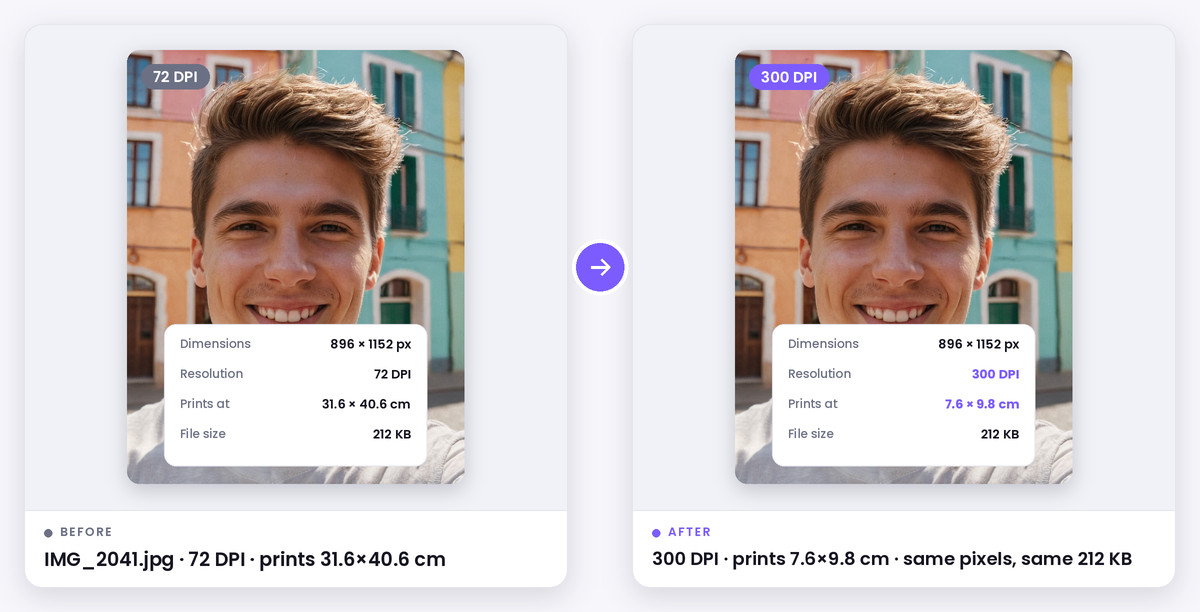
What this tool does
DPI is a number saved inside an image file that tells a printer how many of the photo's pixels to fit into one inch. It doesn't change what the photo looks like on screen, and it doesn't add detail. A 1200×1800 photo at 72 DPI and the same photo at 300 DPI have exactly the same pixels; one just prints at 16.7×25 inches and the other at 4×6.
Most phone cameras save photos as 72 DPI, so when a print shop, Amazon KDP or an application form asks for 300 DPI, the photo gets rejected even when it has plenty of pixels. This tool rewrites only that number. It doesn't open and re-save the image like most online DPI converters do, so there's no extra JPG compression and the file size stays the same.
How it works
A JPG can store its DPI in three places: the JFIF header, the EXIF block that cameras write, and Photoshop's resolution block. Windows reads EXIF first, Photoshop reads its own block, and some websites only look at JFIF. That's why the same photo can show 72 DPI in one app and 96 in another. Every copy that exists in your file is changed to the new value, and a JFIF header is added if the file has none (18 bytes).
A PNG stores DPI in a pHYs chunk as pixels per metre, so 300 DPI is saved as 11,811 pixels per metre. If the chunk is missing it's added before the image data (21 bytes). Nothing else in the file is touched, so the decoded pixels are identical before and after.
Print size is pixels divided by DPI. In print-width mode the tool works backwards: for a photo 413 pixels wide that has to print 3.5 cm wide, the DPI is 413 ÷ (3.5 ÷ 2.54) = 300.
When to use it
Print shops and photo labs
Labs that check for 300 DPI accept the photo without you resampling it.
Amazon KDP and book covers
Interior images and covers need 300 DPI, and the DPI has to be in the file, not only enough pixels.
Exam and job application forms
Some forms ask for a photo or signature at 200 or 300 DPI. Set it here, then check the KB limit with the exam photo resizer.
Word, InDesign and Canva layouts
Layout apps place an image at its DPI size, so a 72 DPI photo arrives huge. At 300 DPI it lands at its real print size.
Quality explanation
There is no quality change because the image isn't decoded or compressed again. If the print size at 300 DPI comes out smaller than you need, the photo doesn't have enough pixels. Changing DPI can't fix that; it needs enlarging, and the photo enlarger does that with AI for small photos.
Step-by-step instructions
- 1Drop one or more JPG or PNG files. Each one shows the DPI it has now and where that value is stored.
- 2Pick a DPI (300 for prints, 200 for many forms), or switch to print width and type the size in cm or inches.
- 3Check the print size each file will come out at.
- 4Save each file, or download them all as a ZIP. The file names end in -300dpi so you can tell them apart.
Key features
- Changes DPI without re-saving the image, so no quality loss and no size change
- Updates JFIF, EXIF and Photoshop DPI in JPGs, and the pHYs chunk in PNGs
- Shows the DPI each file has now, including files where two values disagree
- Print size in cm and inches for any DPI
- Print-width mode works out the DPI from the size a form or print needs
- Batch mode with ZIP download, and nothing is uploaded
Privacy & data security
Files are read and changed in your browser. Nothing is uploaded or stored.
Technical limitations
- Only JPG and PNG. WebP, HEIC and GIF either have no standard DPI field or most apps ignore it, so convert them to JPG first.
- EXIF DPI tags that don't exist aren't created. Apps then fall back to the JFIF value, which is always set.
- DPI doesn't change the number of pixels. If a form checks pixel size or KB, use a resizer or compressor as well.
Frequently asked questions
- Does changing DPI reduce image quality?
- Not here. Only the DPI number in the file header is changed, so the pixels stay exactly the same. Tools that open the image and save it again do lose a little quality with every JPG save.
- How do I check the DPI of an image?
- On Windows, right-click the file, choose Properties, then Details, and look at Horizontal resolution. On a Mac, open it in Preview and choose Tools, Show Inspector. Or drop it here and you'll see every DPI value stored in the file.
- Why does my phone photo say 72 DPI?
- Most cameras write 72 DPI into EXIF as a default. It isn't a measurement of anything. A 12 MP phone photo has enough pixels to print about 10×13 inches at 300 DPI; it just isn't labelled that way.
- How many pixels do I need for a 300 DPI print?
- Multiply the print size in inches by 300. A 4×6 inch print needs 1200×1800 pixels, and a 3.5×4.5 cm passport-size photo needs about 413×531 pixels.
- Will changing DPI change the file size?
- No. The file stays the same size, apart from 18 bytes added to a JPG that has no JFIF header, or 21 bytes added to a PNG that never had a DPI value.
- What's the difference between DPI and PPI?
- Strictly, PPI is pixels per inch in an image file and DPI is ink dots per inch on a printer. In practice apps, forms and print shops use DPI for both, and the number in the file is what they mean.
Step-by-step guides & tutorials
Learn practical workflows, edge-handling techniques, and expert tips for getting the best results with this tool.