Compress PDF – Presets or a Size Limit
Make a PDF smaller with a quality preset, or set a limit such as 100 KB, 200 KB or 1 MB. Nothing is uploaded.
or drag and drop your PDF here
No PDF? Try a sample:
How to use
- 1Upload your PDF or click one of the sample documents below the box.
- 2Pick a quality preset, or choose a size limit such as 100 KB, 200 KB or 1 MB.
- 3Click Compress PDF (or Compress to the size you picked) and watch the progress as pages are processed.
- 4Check the new size and download the compressed PDF.
Privacy: Your PDF is compressed inside your browser. It is not uploaded or stored on any server.
What this tool does
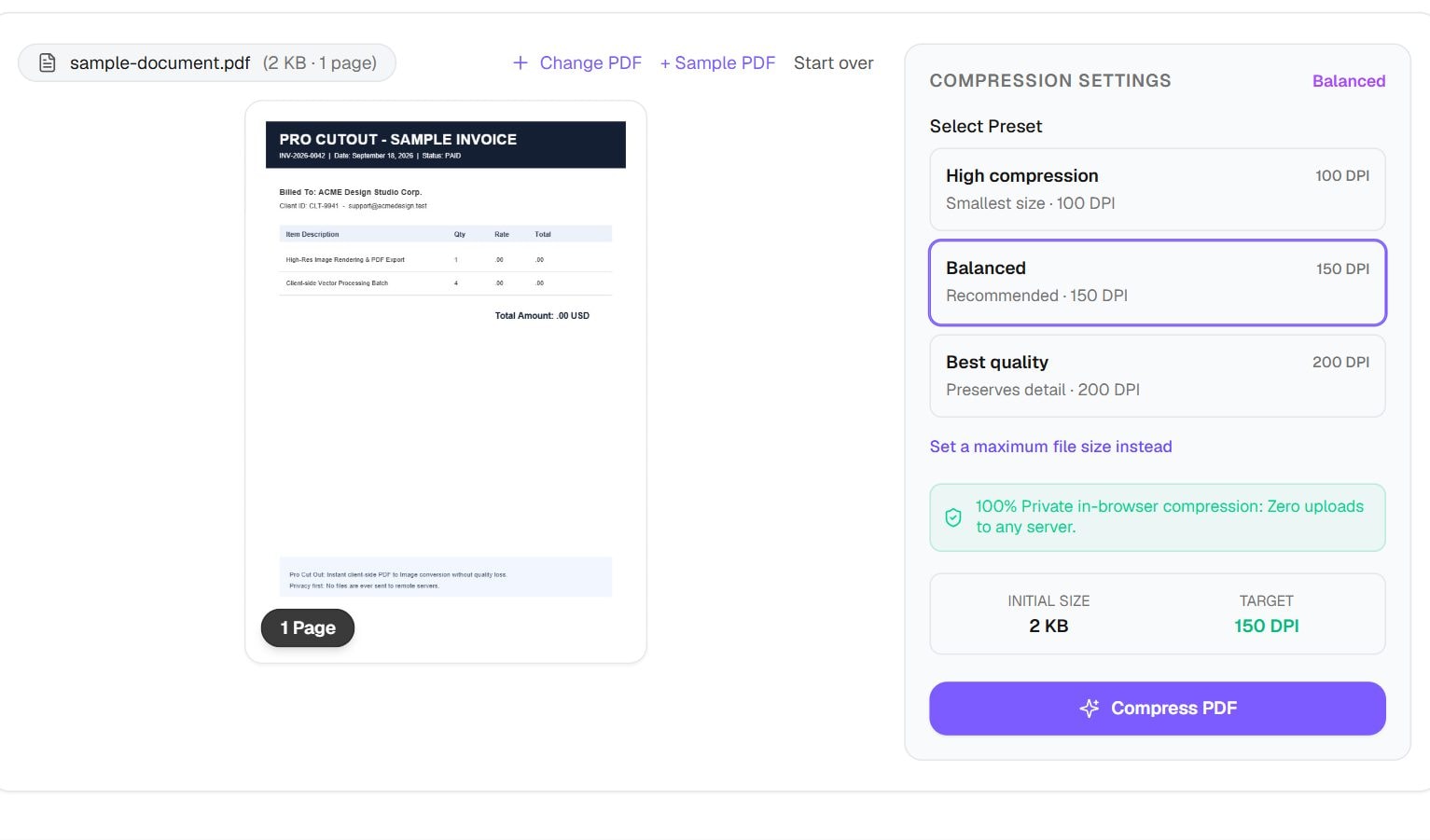
Compress PDF makes a document smaller by redrawing each page as an image at a lower resolution. Pick High compression, Balanced or Best quality, or set a limit such as 100 KB, 200 KB or 1 MB, and the tool tries lower settings until the file fits. It works inside your browser, so a scanned ID or a bank statement is not uploaded. The result panel shows the old and new sizes side by side.
This suits scans and photo-heavy files, and it has a real trade-off, covered below. If your problem is too many pages rather than heavy pages, removing some with Extract or Delete PDF Pages keeps the rest untouched. To combine files for a portal first, use Merge PDF, then compress the merged result.
When you'd use it
- Upload portals with a limit. Government, visa and job sites often cap PDFs at 200 KB or 1 MB, and the size limit option is built for that.
- Phone scans. Scanning apps produce large page images. They compress well because they are already just pictures.
- Email. A photo-filled report may be too big to attach until it is compressed.
- Archiving scans. For documents you only need to read, a smaller copy saves space. Keep the original too if you can.
How it works
The tool renders each page with PDF.js at a set resolution, encodes that page as a JPG, then builds a new PDF from those images. High compression uses 100 DPI, Balanced 150 and Best quality 200. In size limit mode it walks a ladder of settings from 150 DPI down to 50, moving towards better quality while the file still fits, and towards smaller files until it does.
This is why it can shrink a scan so dramatically, and it explains the downside. After compressing, each page is a flat picture. Text can no longer be selected or searched, and links, bookmarks and form fields are gone. A short PDF that is mostly text may even get larger, because a picture of a page can take more space than the text itself. The tool warns you when that happens.
Real results from our tests
The photo PDF shows the tool at its best: 2.51 MB fell to 210 KB at Balanced. The text form shows the opposite. It started at just 11 KB and came out larger at every setting, up to 215 KB. If your PDF is mostly text and already small, do not compress it.
| File | Original | High compression | Balanced | Best quality |
|---|---|---|---|---|
| 4 pages of photos | 2.51 MB | 90 KB | 210 KB | 566 KB |
| Text survey form | 11 KB | 61 KB | 120 KB | 215 KB |
Measured by running this tool in Chrome on 6 November 2026. Your files will give different numbers.
Tips and common mistakes
- Check whether you need to compress at all. A PDF already under your limit should be left alone.
- Use a size limit when a portal gives you a number. Use a preset when you only want a smaller file.
- Read one page at full zoom before you submit, especially small print. Low DPI hits fine text first.
- Keep your original PDF. This process cannot be undone, and the text layer does not come back.
- If text must stay selectable, or the file has forms to fill in, do not use this tool on it. Try removing pages or images at the source instead.
Limits
- Output pages are images, so selectable text, links, bookmarks and form fields are lost.
- Small, text-based PDFs can get larger, as our test shows.
- Password-protected files need unlocking first with the PDF Unlocker.
- A very low limit may not be reachable. If even the smallest setting is too big, the tool says so, and you should split the file or remove pages.
- The page suggests files up to about 50 MB, since long documents need a lot of memory in the browser.
Frequently asked questions
- How do I compress a PDF to under 200 KB?
- Upload it, choose the 200 KB limit and press compress. The tool tries lower resolutions until the file fits, then shows you the setting it used. If the document has many pages, 200 KB may not be readable, and the tool will tell you if it cannot reach the limit.
- Why did my PDF get bigger?
- Your PDF was probably mostly text. Text is stored very efficiently, whereas this tool turns each page into an image. Our 11 KB form grew to 120 KB at Balanced. Keep the original in that case.
- Will I still be able to select the text?
- No. Pages become images, so text cannot be selected or searched afterwards. If you need that back, run the result through PDF OCR, or compress a copy and keep the original.
- Is my PDF uploaded?
- No. Pages are rendered and rebuilt in your browser, and the file stays on your device.
- Which setting should I choose?
- Balanced is the place to start. Use Best quality if you need to read small print, and High compression if the only goal is the smallest file.
Maintained by Hardik Sindhav · Last verified 6 November 2026 · How we test and use AI
Want the details? How to compress a PDF under 200 KB: three PDFs tested, and why a text PDF can get 26 times bigger